RigTracker
Visual control panel for managing guitar tones and effects in REAPER.
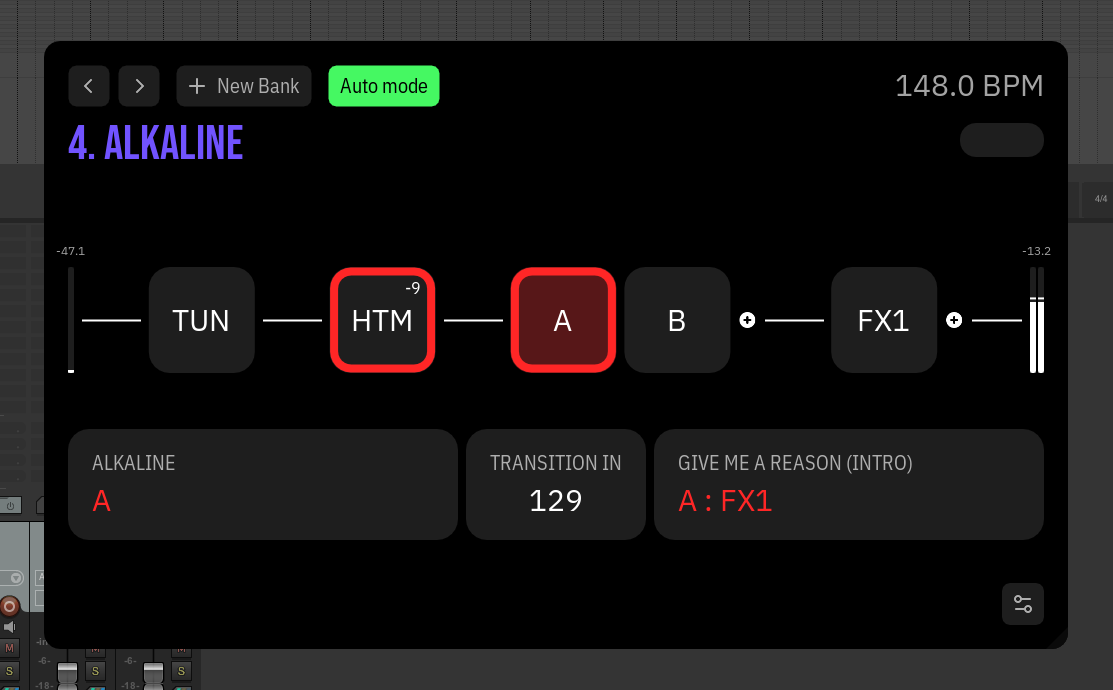
Overview
RigTracker provides a real-time visual interface for your guitar signal chain. Instead of using automation lanes or manually toggling plugins, you switch between channels with one click — manually or automatically based on timeline regions.
Key Features:
- Channel switching (A-F) with smooth crossfades
- FX toggle controls (FX1-FX6)
- Volume meters with peak hold
- Tuner integration
- HyperTune/HyperTune Metal control with transpose display
- FX Bindings — auto-enable effects per channel
- Auto Mode — automatic switching based on regions
- Background images per bank/region
- MIDI foot controller support via standalone scripts
Requirements
- REAPER DAW (v6.0+)
- ReaImGui extension (v0.10.0.2+)
- SWS Extension (recommended)
- Fonts: Bebas Neue, IBM Plex Sans, IBM Plex Sans Condensed
Installation
-
Install SWS Extension
- Download from sws-extension.org
- Run the installer
-
Install ReaImGui
- Open ReaPack:
Extensions > ReaPack > Browse packages - Search for "ReaImGui"
- Install and restart REAPER
- Open ReaPack:
-
Install Fonts
- Download and install: Bebas Neue, IBM Plex Sans, IBM Plex Sans Condensed
- Restart REAPER
-
Install RigTracker
- Copy all
.luafiles to your REAPER Scripts folder - Load
RigTracker.luaviaActions > Show action list > Load ReaScript
- Copy all
Controls
| Action | Result |
|---|---|
| Click on bank name | Open channel list |
| Long press on channel | Open channel's FX container |
| Long press on FX | Open FX track's FX chain |
Quick Start
- Run
RigTracker.lua - Click "+" to create a new bank
- Enter bank name and select input channel
- Add channels (A-F) using the "+" button
- Add FX tracks using the "+" button
- Click channels to switch tones
- Click FX to toggle effects
Project Structure
RigTracker automatically creates this track structure:
Project
└── RigTracker (folder track)
    └── [Bank Name]
        ├── Input (guitar signal input)
        ├── AMP (main processing chain)
        │   ├── HyperTune / HyperTune Metal (optional)
        │   ├── A (FX Container)
        │   ├── B (FX Container)
        │   ├── C, D, E, F...
        │   └── Sends to FX tracks
        ├── FX1 (effect track)
        ├── FX2 (effect track)
        └── FX3, FX4, FX5, FX6...
FX Bindings
Automatically control effects when switching channels:
- Enable FX Bindings in settings
- Drag an FX button onto a channel button
- FX turns ON when that channel is activated
- FX turns OFF when switching to other channels
Example:
- Bind FX1 (Delay) to Channel A
- Bind FX2 (Reverb) to Channels A and B
- Switch to A → Delay ON, Reverb ON
- Switch to B → Delay OFF, Reverb ON
- Switch to C → Both OFF
Auto Mode
Automatically switch banks, channels, and effects based on timeline regions.
Region naming format:
[BankName] - [SongPart] : [Channel] : [FX1] : [FX2]
Examples:
Clean - Intro : A : FX1 : FX2
Lead - Solo : C : FX3
Crunch : B
When playback enters a region, RigTracker reads the region name and switches automatically.
Standalone Scripts
For MIDI foot controller integration:
| Script | Description |
|---|---|
A_activation.lua - F_activation.lua | Switch to channel A-F |
Toggle FX 1 Send.lua - Toggle FX 6 Send.lua | Toggle FX1-FX6 |
HTM_bypass.lua | Toggle HyperTune Metal bypass |
HT_bypass.lua | Toggle HyperTune bypass |
toggle_tuner.lua | Toggle tuner |
next_bank.lua | Switch to next bank |
prev_bank.lua | Switch to previous bank |
next_region.lua | Move cursor to next region |
prev_region.lua | Move cursor to previous region |
MIDI Setup:
- Go to
Actions > Show action list - Load the script
- Click "Add" to assign a MIDI shortcut
Customization
Background Images
- Place images in
backgrounds/folder - Name:
[BankName].pngor[BankName] - [SongPart].png
Bank Preview Images
- Place images in
bank_images/folder - Name:
[BankName].png
Settings
- Show/Hide title bar
- Fullscreen mode
- Show/Hide tuner button
- Show/Hide region info
- Enable/Disable FX bindings
- Two-row layout option
File Structure
scripts/
├── RigTracker.lua
├── A_activation.lua - F_activation.lua
├── Toggle FX 1 Send.lua - Toggle FX 6 Send.lua
├── HTM_bypass.lua
├── HT_bypass.lua
├── toggle_tuner.lua
├── next_bank.lua
├── prev_bank.lua
├── next_region.lua
├── prev_region.lua
├── fx_bindings/
│   └── [BankName].txt
├── backgrounds/
│   └── [BankName].png
└── bank_images/
    └── [BankName].png
Troubleshooting
Channels not appearing:
- Verify FX on AMP track are named exactly A, B, C, D, E, or F
FX blocks not appearing:
- Check FX track naming ("FX" or "FX1", "FX2", etc.)
- Verify tracks are inside bank folder
Auto Mode not working:
- Check region naming format (use
:as separator) - Verify bank names match folder names exactly
HTM/HT not showing:
- Verify plugin is on AMP track
- Plugin name must contain "HyperTune"
- VST3 version recommended for transpose display
License
MIT License
Author
Pavel Sevtov